
Materials and ingredient libraries
Every raw material as a full record — families, pyramid position, supplier, cost, quantity, IFRA limit, picture and dilutions — so what you know about a material is kept with it.
RUŌOD Lab


RUŌOD Lab holds your raw-material library, your formulas and your bench notes on your own device — and does the arithmetic that sits between them. Dilution, composition, scaling and production targets all come from one calculation engine, so the numbers on every screen agree.
An Android application, in testing on Google Play and not yet publicly listed. Invited testers can join the test on Google Play; anyone else, write to us to hear when it is listed.
What it manages
RUŌOD Lab is perfume formulation software for Android. It keeps your raw materials, your formulas and the notes about both on your own device, links them to one another, and works out the figures between them. The result is less searching, less re-typing, and a clear record of which version of a formula is which.
Every raw material as a full record — families, pyramid position, supplier, cost, quantity, IFRA limit, picture and dilutions — so what you know about a material is kept with it.
Materials, formulas and notes filed into collections you colour, fold, reorder and move items between — and delete without losing what is inside.
Entries with a weight and a dilution each; totals, the three percentages and the IFRA check resolve as you type, and scaling takes a trial to a batch.
Duplicate a formula into its next version, see how many copies exist, lock the ones that must not be deleted, and undo across the application.
Add the fields your work needs, arrange them in sections of your own, and let Formula Hub calculate values from the fields you already keep.
My Notes for your own write-ups; App Notes gathers every description on a material, formula or collection into one list you can read and edit.
Search one list or the whole library, filter and sort, and put any item at an exact position by typing the number rather than dragging.
PDF, CSV, Excel and JSON out; CSV, Excel and JSON in; and, with Premium, one complete backup to your device or your Google Drive — never a sync.
Choose what each list row shows, the default weight and volume units, and a light, dark or Lab theme.
RUŌOD Lab is free to start, and RUŌOD Lab Premium lifts the Free plan's limits — see Free and Premium.
Comparing tools? Our complete guide to perfume formulation software sets out what such software should do, whichever application you choose.
In the hand
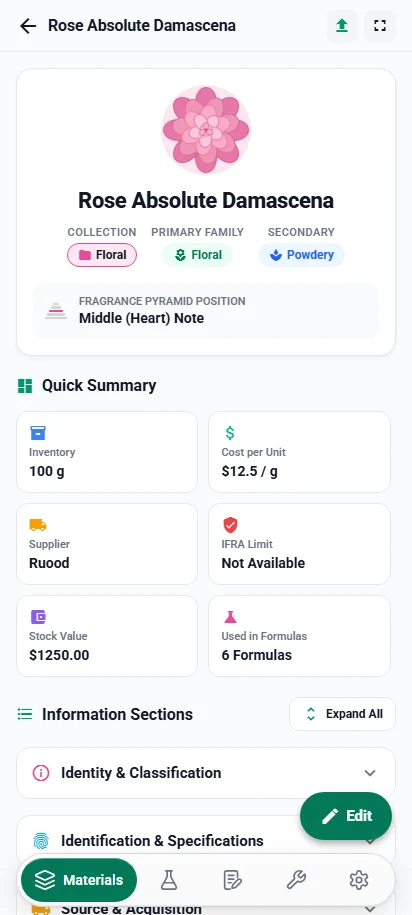
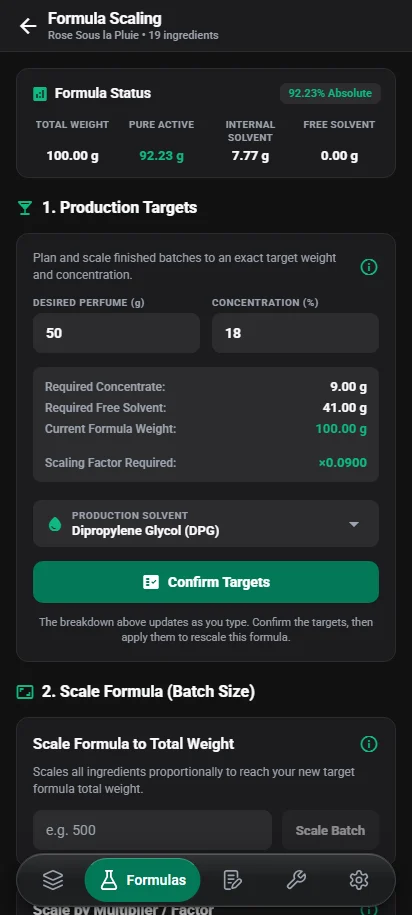
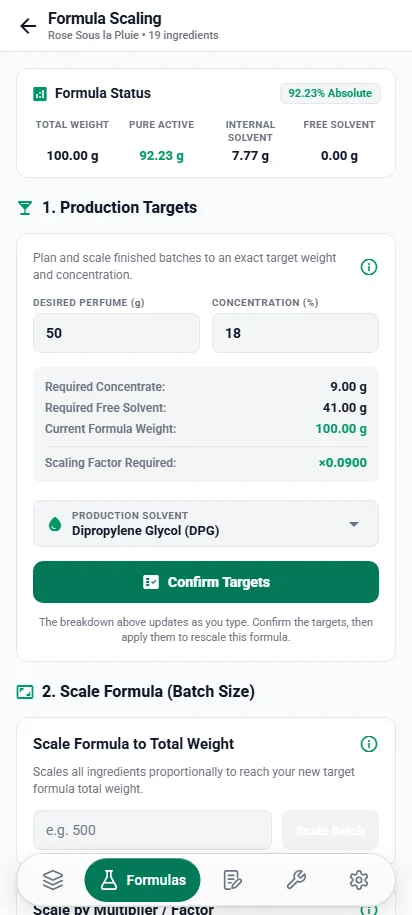
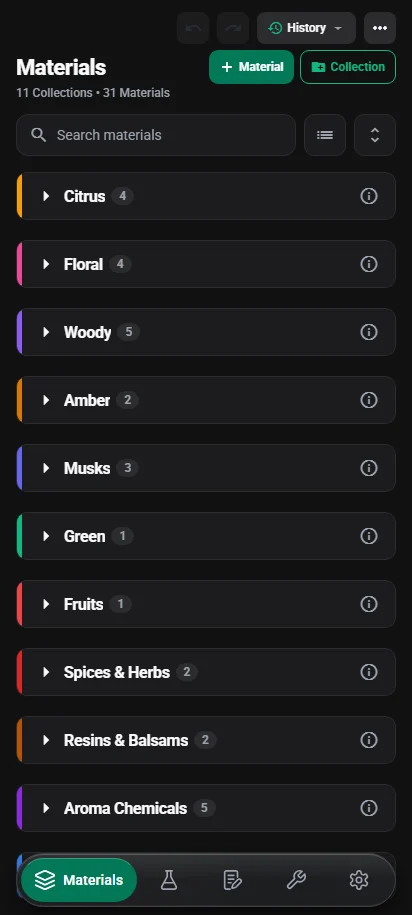
Every screen on this page is the application itself, holding the RUŌOD Library — the built-in materials, formulas and notes you can generate to start from, and clear when you no longer want them. Where a screen shows a RUŌOD Lab Premium feature, its caption says so.




What it is
Most perfumers end up with a materials list in one file, formulas in another, and the percentages recalculated by hand every time something changes. RUŌOD Lab keeps the three connected: a material is a record, a formula is built from those records, and every figure the app shows is derived from them when you look at it.
How many formulas use a material, how many copies a formula has, what a collection contains — none of it is stored as a number that can go stale. It is worked out from your records each time, so an edit is reflected immediately and a restored backup tells the truth about what it brought back.
The formula editor, the scaling screen, the status bar, the reports and the exported PDF all read the same engine. No screen recomputes a percentage of its own, which is why a printed total can never disagree with the one on the bench.
The application stores your library locally and works with no connection at all. There is no RUŌOD account and no server holding your formulas. Backup — to the device or to Google Drive — comes with RUŌOD Lab Premium, and connecting Drive is something you choose to do.
The workflow
The application is arranged around the order the work actually happens in.
Record what you have, file it into collections, and keep the supplier, cost, quantity and IFRA limit with it.
Add materials as entries, give each a weight and a dilution, and watch the composition resolve as you type.
Read the three percentages, check the IFRA position, and scale the whole formula to a weight, a factor or a concentration.
Write it up in Notes, export it as a PDF or a spreadsheet, and back the whole library up.
Materials
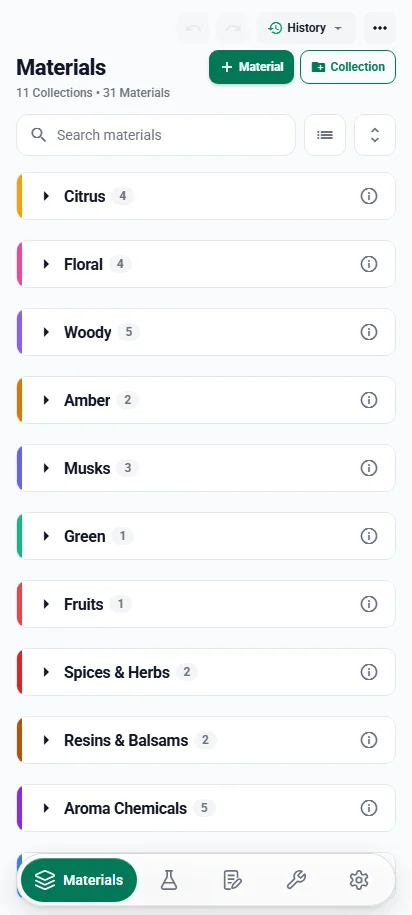
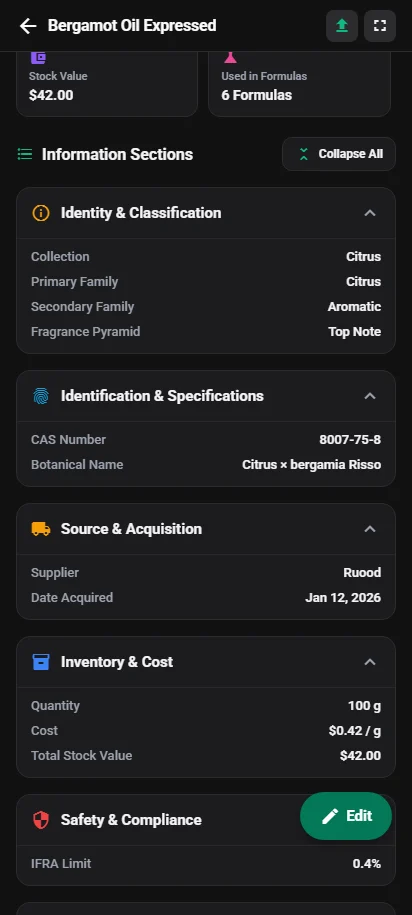
A material in RUŌOD Lab is a full record, not a name and a price. Materials are filed into collections, and the library is searchable, filterable and sortable on the fields you keep.
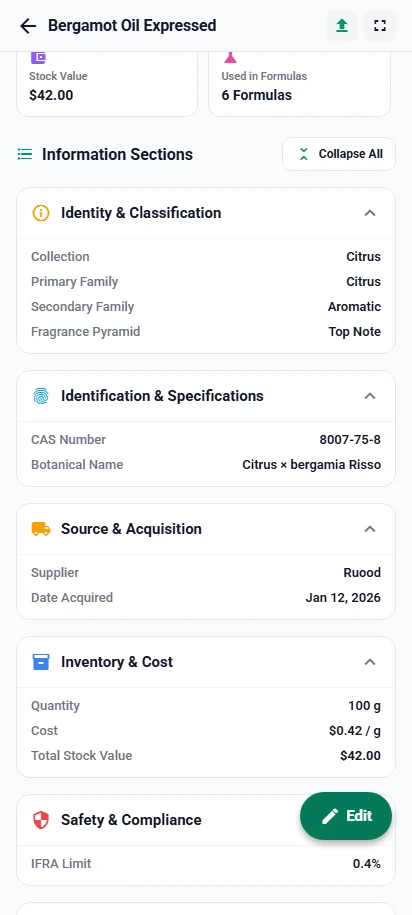
Name, primary and secondary fragrance family, position in the fragrance pyramid, a picture, CAS number, botanical name, supplier, date acquired, quantity, cost, IFRA limit, dilutions, a solvent flag, your own code and a description. Not every field has to be filled, and fields left empty can be kept out of the way.
Material Layout decides which sections appear and in what order; Material Fields decides what a field is and how it behaves. You can add a field that every material carries, or one that belongs to a single material — and either way it travels with the record through a backup.
Search each list directly, or search the whole library from one field in Tools. Filter materials by fragrance pyramid position or primary family, and sort by name, date acquired, IFRA limit or quantity. A value that was never recorded sorts last rather than pretending to be zero.
Each material reports the formulas that use it, counted from the live formula list rather than a stored figure. Distinct formulas, never entries — a formula using a material on three rows counts once, and renaming a material never changes the answer.


Formulas
A formula is a set of entries, each pointing at a material in your library and carrying a weight and a dilution. Everything else about it is worked out.
Total weight, total pure active, total internal solvent and total cost resolve as you edit a row. The status bar above the entries shows the measures you chose to keep in front of you, from eleven the engine derives.
Formula collections, a status, tags, a favourite mark and a lock. A locked formula cannot be deleted — a bulk delete containing one is refused whole rather than partly obeyed, and it names which ones are locked.
Duplicating a formula names the copy and marks it. The version mark never renumbers — delete v2 of four and v4 stays v4 — while the duplicate count is derived, so it falls when a copy goes. How versions and duplicates read.
Where you have recorded an IFRA limit for a material, the engine checks it against that entry's relative percentage and flags the row. A material with no limit recorded is never quietly treated as compliant.
Edits are undoable and redoable app-wide, not just in one screen. The Free plan undoes your most recent change; with Premium you can go back as far as the history limit you set. The history stays on the device — it is deliberately not carried into a backup. What undo covers.
A formula exports as a laid-out PDF: the ingredient table with its dilutions, the totals beneath it, and the same status-bar measures you selected — typeset rather than dumped.


Versions & duplicates
Every formula row ends its tag line with one small badge holding two marks, such as V1 · D0. They answer different questions, and they behave differently when something is deleted.
Duplicate a formula and the copy is named after it with the next version number: Eau de Bergamote becomes Eau de Bergamote v2, then v3 — one more than the highest version that exists. Every row shows its mark, so a formula never duplicated reads V1. Versions are never renumbered: delete V2 of four and V4 stays V4.
How many other formulas share the same base name. A formula with no copies reads D0; the original and each copy count the others, so after one duplicate both read D1. It is counted from the list every time rather than stored, so deleting a copy lowers it at once.
A status — Draft, Testing, Approved, Production or Archived — tags and a favourite star. A locked formula's entries cannot be edited, and it cannot be deleted, singly or in a bulk delete, until you unlock it. It guards against accidents in the app; it is not encryption. A duplicate starts unlocked and unstarred.
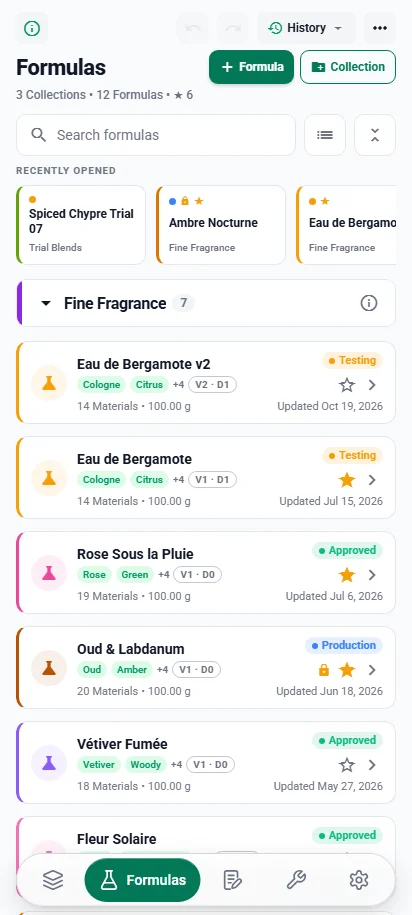
The strip at the top of Formulas holds the five formulas you opened last, each with its collection, status, lock and favourite marks — one tap back into the work in progress, without searching. The list can also be sorted by when each formula was last opened.
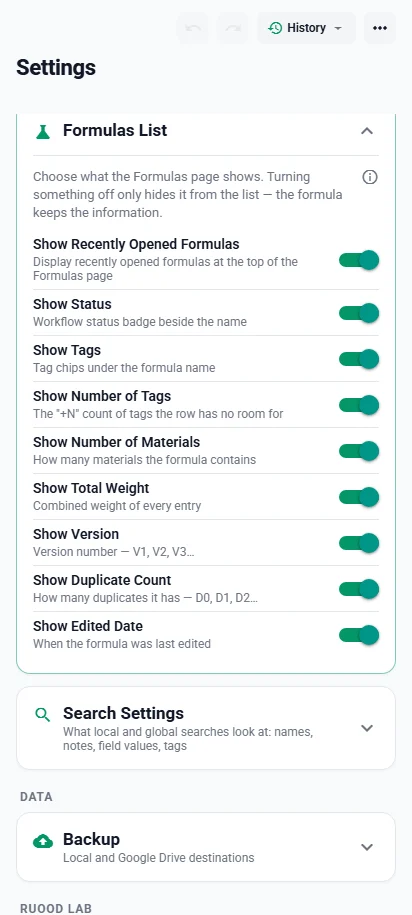
Settings → Formulas List switches nine things on or off: the Recently Opened strip, and each row's status, tags, number of tags, number of materials, total weight, version, duplicate count and edited date. Materials List does the same for thumbnails, primary family and fragrance pyramid. A switch changes only the list — the record keeps every detail.


Reorder mode
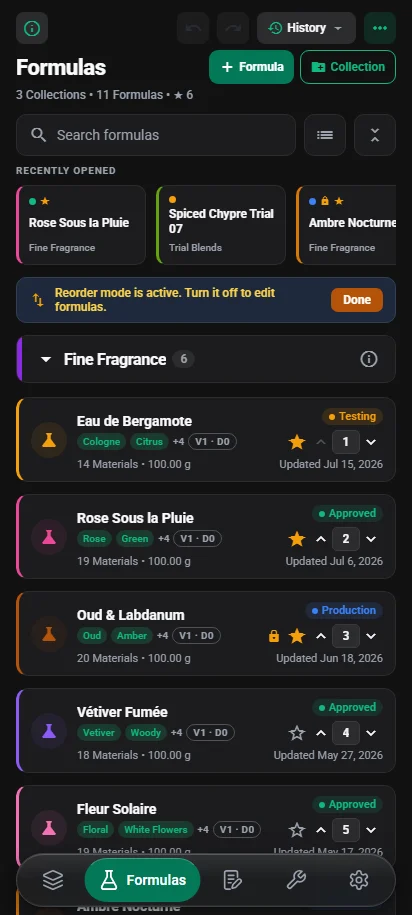
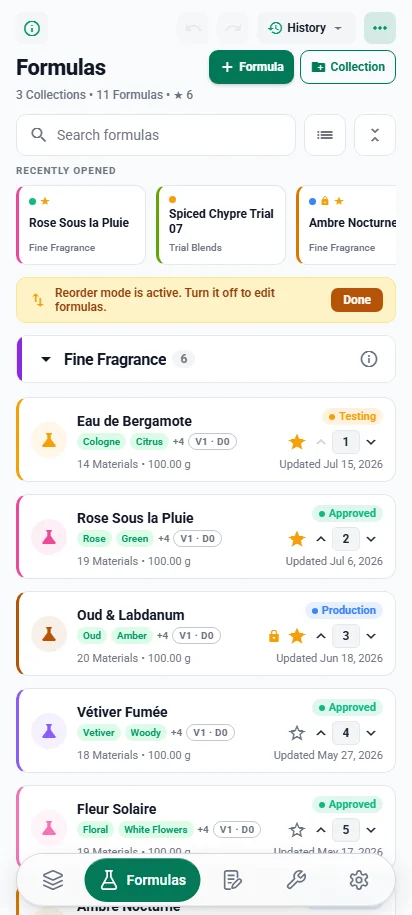
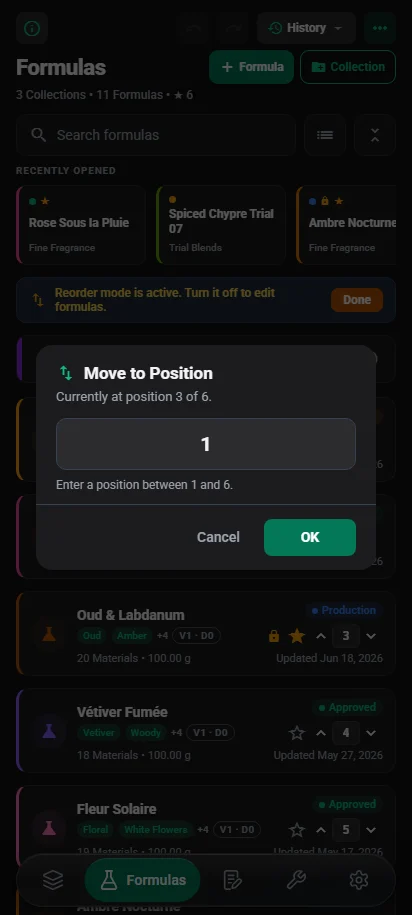
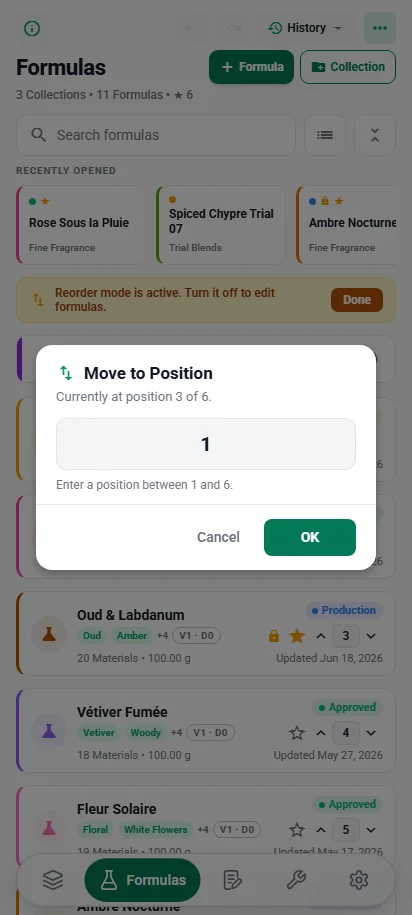
Dragging a row through a long list is slow and easy to get wrong. In RUŌOD Lab's reorder mode every row carries its position number, and you move it by typing where it should go.
Fold every collection and the collection headers take the same arrows and position number, on Materials, Formulas and Notes alike. Items move within their own collection; to change collection, move them.
While a search, filter, sort or multi-select is active the list on screen is not the stored order, so the reorder button is not offered. Inside a formula, entries reorder the same way while the formula is sorted manually and unlocked.
Collections
Materials, formulas and notes each live in collections, and all three screens handle them the same way.
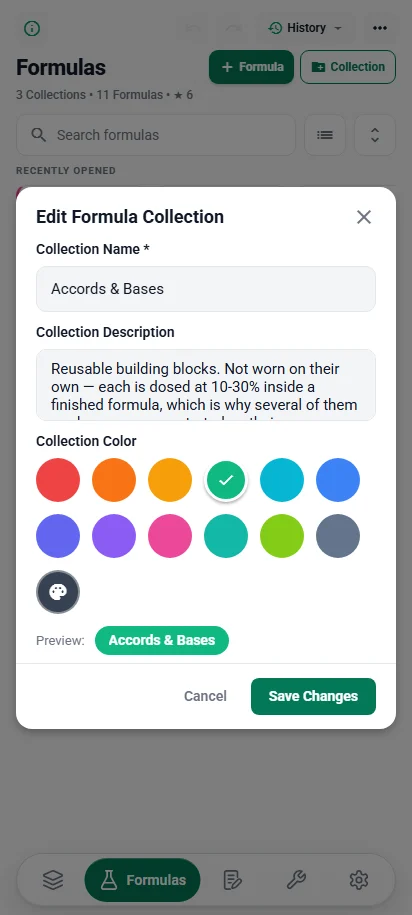
Choose one of twelve preset colours or enter a custom HEX colour. It marks the collection's header — and on Materials, the edge of every material filed in it — so you find a collection by colour before you read a name.
Each collection folds to a header with its count; one button folds or opens them all. A collection can carry a description, read from its ⓘ — and gathered into App Notes with every other description.
Long-press to start selecting, pick as many items as you need, and move them to another collection in one step — on Materials, Formulas and My Notes.
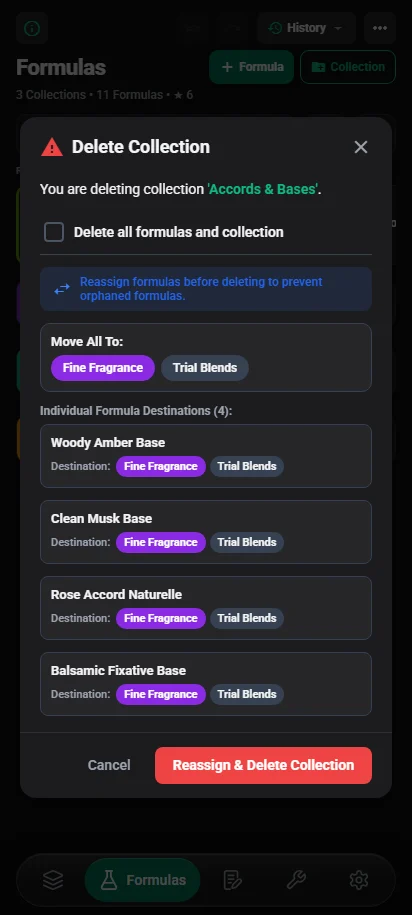
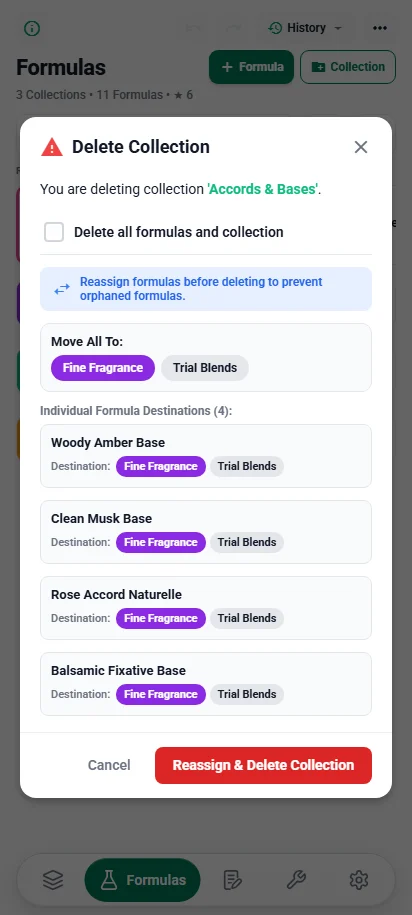
The Delete Collection dialog lists everything inside. By default nothing goes with it: send every item to one collection with Move All To, or pick a destination for each item, and the delete waits until every item has one. Contents are removed only if you tick Delete all … and collection, under a warning.
The last collection that still holds items cannot be deleted — the dialog asks you to create another first. A collection deletion is recorded in the undo history like any other edit, except in a library too large to snapshot, which the warning says before you confirm.

Dilution & calculation
They are routinely treated as one number, and they are not interchangeable. RUŌOD Lab keeps them apart because they answer different things — and because only one of them is the right basis for an IFRA check.
| Percentage | Derived from | The question it answers |
|---|---|---|
| Formula % | entry weight ÷ total weight |
What physical share of the mass is this row? This is what you read when you are weighing. |
| Absolute % | pure active ÷ total weight |
How concentrated is this material in the finished mass, once its own solvent is discounted? |
| Relative % | pure active ÷ total pure active |
What is this material's olfactory contribution? Solvent is ignored entirely, and this is what IFRA limits are checked against. |
One row, as the engine reads it
Weight × dilution gives the pure active; the remainder of the row is solvent the material brought with it.
A material entered at a dilution brings solvent into the formula with it. The engine separates the two for every row — pure active is the weight times the dilution, and internal solvent is what is left of the row. Totalled across the formula, they are what makes a concentration figure mean anything.
Solvent carried inside a diluted material and solvent added to the formula as its own entry are different things, and the application keeps them distinct. An entry you mark as a solvent carries no active weight by definition, which is also what lets scaling draw it down when a concentration has to change.
Switching a row to a different dilution is not one operation. Which of the three you want depends on what must not move.
| Method | Held constant | What moves |
|---|---|---|
| Preserve weight | The row's weight | Pure active shrinks, internal solvent grows. The formula total is unchanged and no other entry is touched. |
| Preserve percentage | The row's pure active | Only this row's weight changes, so the formula total moves. The material keeps its relative contribution. |
| Exchange solvent | Pure active and the formula total | The row grows and the entries you flagged as solvents are drawn down by the difference. |
Direct editing and scaling are different operations. Editing changes a formula's composition — you are deciding that a row should now be a different weight. Scaling transforms the whole formula while holding its proportions, so it answers a different question: how do I make more of the same thing, or the same thing at a different strength?
Scaling & production targets
The Dilutions & Scaling screen works on the whole formula. Ingredient proportions, dilution percentages and dilution methods are preserved through a scale; what changes is the size or the strength.
Scale the formula until its total raw weight reaches a target, or apply a factor directly. You can also scale from one ingredient — set the weight or the percentage a single material should have, and the rest of the formula follows it.
Set the absolute percentage the formula should reach, and free solvent is adjusted to meet it while existing dilutions and internal solvent stay intact. A target stronger than the formula could reach with no free solvent at all is refused rather than approximated.
Give the finished batch size and the concentration you want it at. The engine returns the concentrate required, the alcohol to make it up with, and the factor between that and the formula as it currently stands.
A scaling operation is calculated and shown to you first, and applied only when you accept it. If it does turn out wrong, the app-wide undo is behind you.
Fields & sections
The built-in material record is a starting point. Add the fields your work needs, and decide where each piece of information appears.
Tools → Material Fields → Add Custom Field creates a field every material carries — text, number, date, toggle, dropdown, colour and more — with its own visibility (always show, show only when filled, hidden or read-only) and its own validation rules.
Add Field on a single material creates a field that belongs to it alone. Both kinds read side by side in that material's Custom Fields section, and both travel with the record through a backup.
Material Layout holds the sections a material is shown in. Add your own, rename them, move them up or down, hide any but the protected first one, choose whether each opens collapsed, and move fields between them. Adding, editing and viewing a material all follow the same layout.
Defined in Formula Hub: the value is worked out from a material's other fields and shown in its Calculated Fields section. It is output, never input — the material editor offers no box in which to overwrite it.


Formula Hub
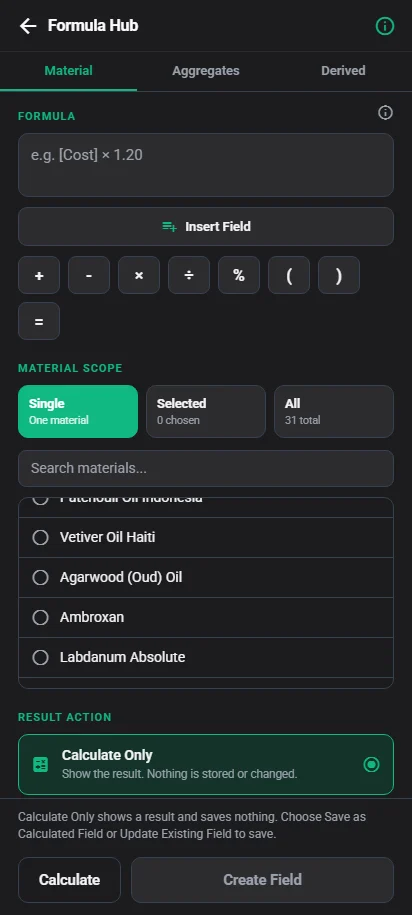
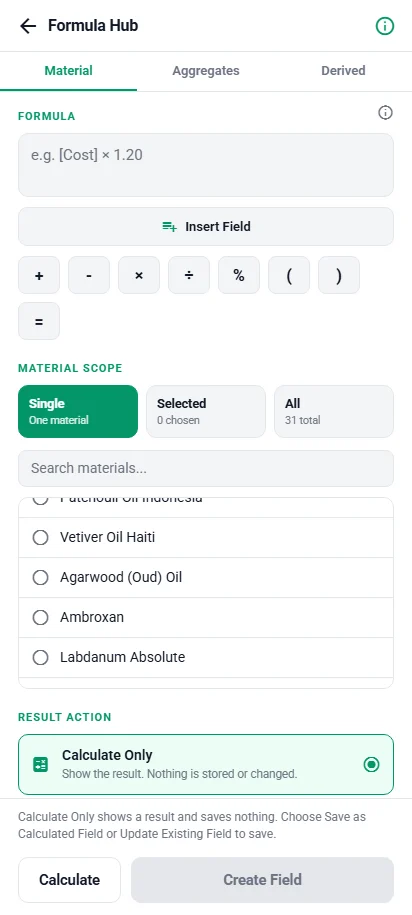
Separate from the formula engine above, and for a different job: defining your own calculations over the fields your materials carry. Write them once in Formula Hub, in Tools, and they appear as values on the material.
Arithmetic over one material's own fields — [Cost] × 3.
Saved results become calculated fields in the material field catalogue.
An empty source makes the result unavailable rather than zero; nothing is
written to a material to make a calculation succeed.
SUM, AVERAGE, MIN,
MAX and COUNT across every material in the
library. Here COUNT reports how many materials actually
hold a value, so you can see what the average was taken over.
Calculations that build on saved aggregates and on each other by name. Dependencies are tracked: a calculation something else depends on cannot be deleted, and a circular reference is refused when you save it.
A material calculation runs over one material, a selection or the whole library, and you choose what happens to the result. Calculate Only stores nothing. Save as Calculated Field keeps the formula and recalculates when its sources change. Update Existing Field writes the values into a field once, from a preview, and keeps no formula — a material missing a source value is skipped and left as it was.
Notes
Your own notes — ingredient observations, formulation decisions, trial results — written with headings, bullet lists, bold, italic and underline. File them into collections, give each a category (General, Idea, Research, Experiment or Reminder), pin the ones you keep returning to, and reorder them by hand or sort them by date or title.
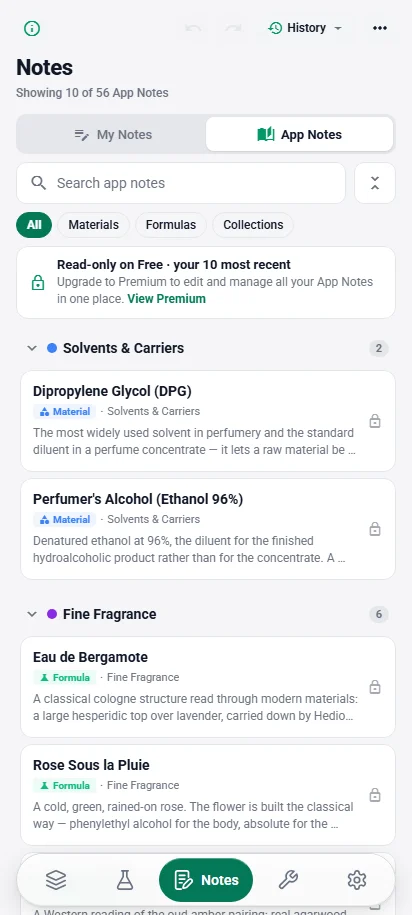
Everything you have already written into a description — on a material, a formula or either kind of collection — gathered into one list you can filter by source. It is a view over those records rather than a second copy: edit a note in App Notes and the material, formula or collection shows the change, and editing the record changes the note. Show Empty Notes lists the records still without one. On the Free plan App Notes shows your ten most recent notes, read-only; RUŌOD Lab Premium shows them all, editable. A description can always be read and edited on the record itself, on either plan.
Both kinds export as PDF, plain text, CSV or JSON. The Free plan exports one note at a time; RUŌOD Lab Premium exports a selection or all of them, and App Notes. Both are carried in a complete backup.
Notes are yours alone and stay on your device. RUŌOD Lab has no shared documents, no comments and no real-time editing — it is a bench notebook, not a collaboration tool.


History & undo
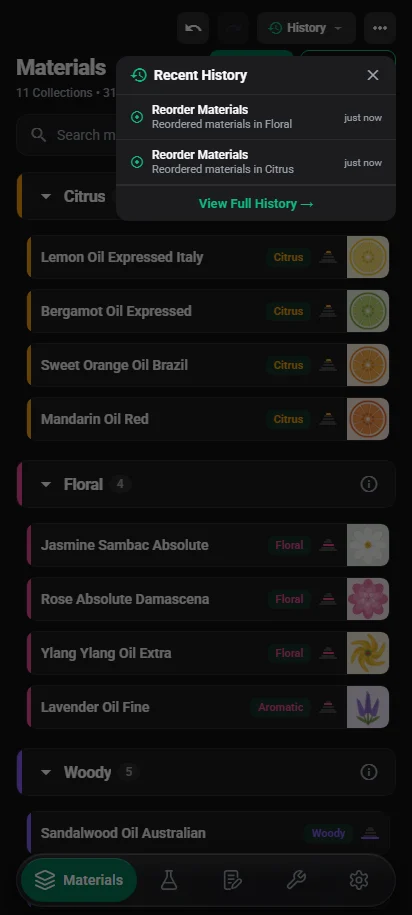
Changes to your records go into one history shared by every screen, so undo reaches further back than the last thing you typed — and you can see what it will undo before it does.
Formula entries, dilution changes and scaling; reordering; deleting materials, formulas and collections; creating, editing and moving notes; descriptions edited in App Notes; values written by Formula Hub. Not every action is recorded — changing a setting or duplicating a formula is not — so the History menu is the place to check.
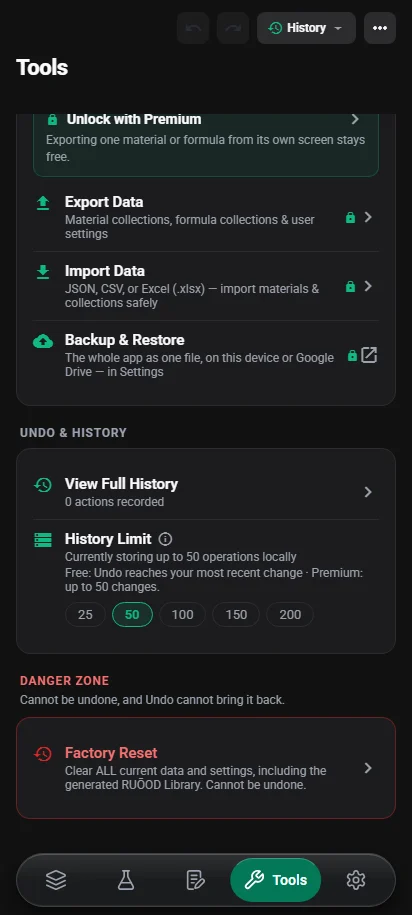
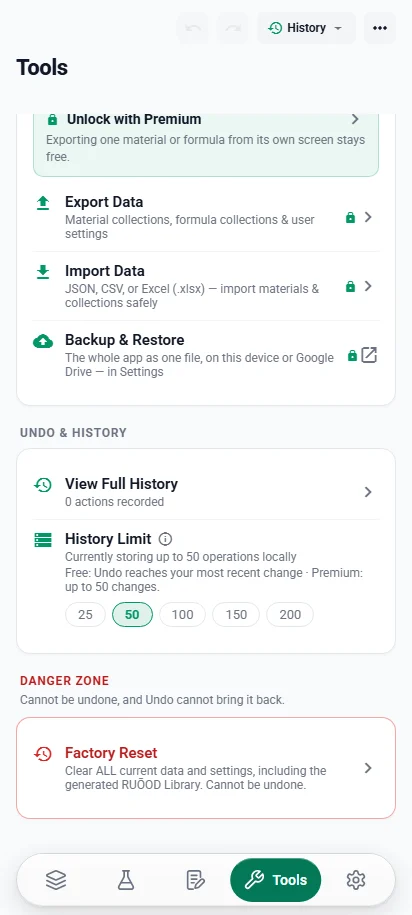
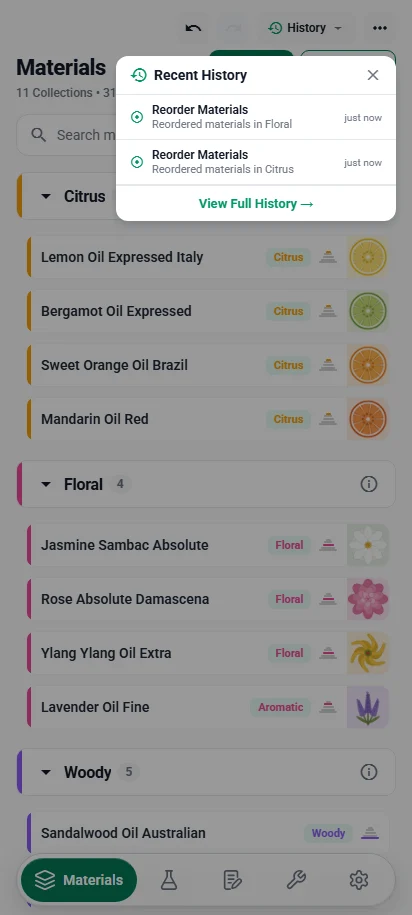
Undo, redo and History sit in the toolbar at the top of every tab. History shows the five most recent actions; View Full History lists every entry, and restoring one undoes everything after it — the confirmation says how many changes that is. The Free plan undoes the most recent change; RUŌOD Lab Premium goes back as far as the History Limit. Redo is never limited.
Tools → Undo & History sets how many operations are kept: 25, 50 (the default), 100, 150 or 200. Past the limit the oldest entry is dropped, and lowering it trims the history at once. Entries are stored on this device only and are not part of a backup. Nothing in the history is ever trimmed because of the plan.
A deletion in a library too large to snapshot safely is still logged — with a lock beside it — but cannot be undone. The delete dialog warns of it before you confirm.
Search, filter & sort
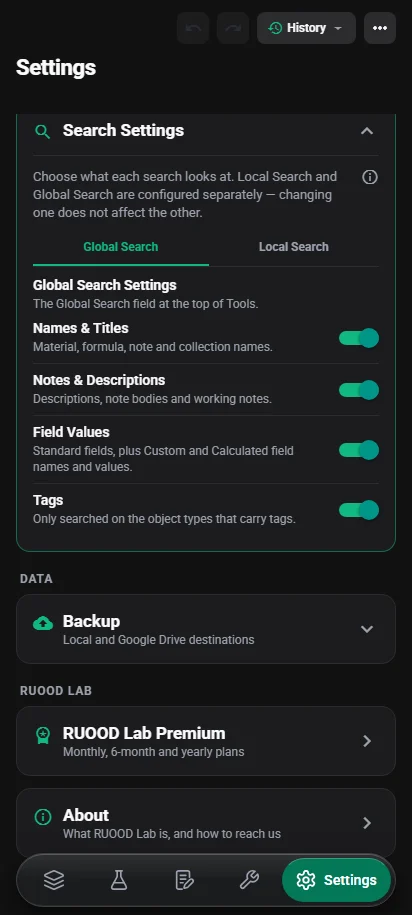
Local and global search use the same matching rule. What differs is what they look through — and each has its own settings.
The search bar on Materials, Formulas, My Notes and App Notes narrows that list. A collection stays in view when its own name or description matches, or when something inside it does — and then only the matching items are shown inside it.
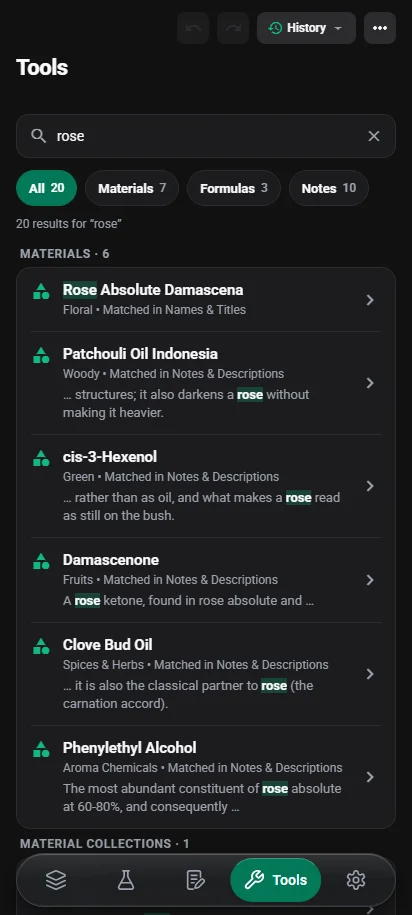
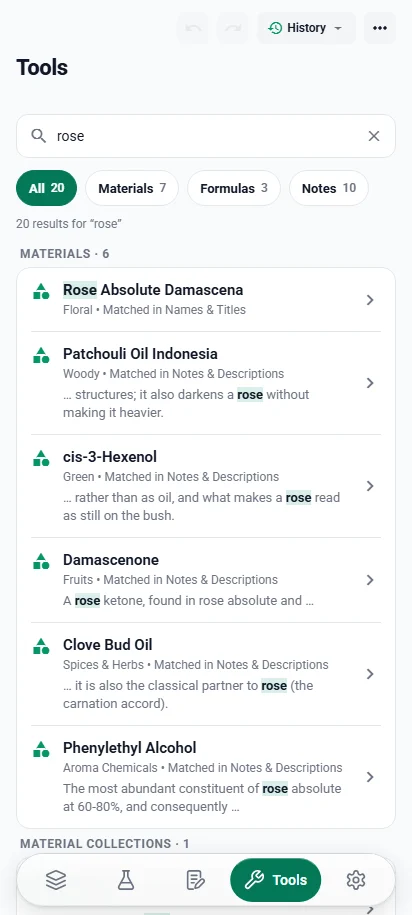
The field at the top of Tools searches materials, material collections, formulas, formula collections, My Notes and App Notes at once. Each result says what it is, where it lives and where the match was found, and a tap opens it. Settings and configuration screens are not searched.
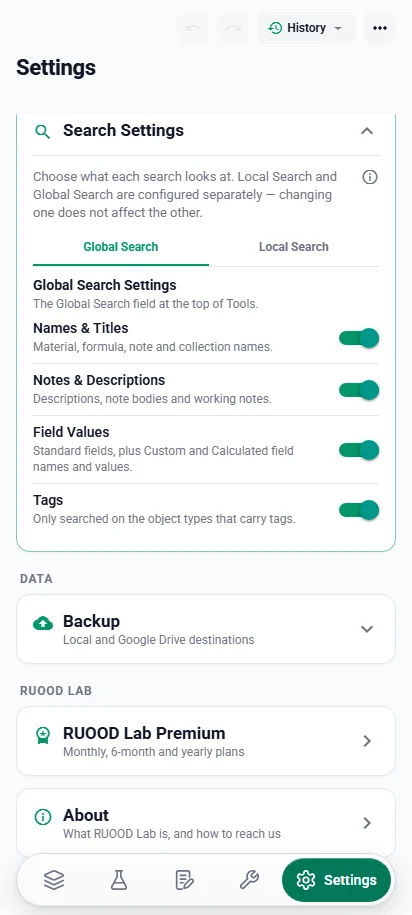
Choose what each search reads — names and titles, notes and descriptions, field values (custom and calculated fields included) and tags — separately for local and global search. A calculated field is found by its value, never by its formula.
Filter materials by pyramid position or primary family; sort them by name, date, IFRA limit or quantity. Sort formulas by favourites, name, date modified, created or last opened, status, total weight or number of ingredients, and My Notes by date or title. A Sorted bar shows what is applied and clears it in one tap.
Display, units & appearance
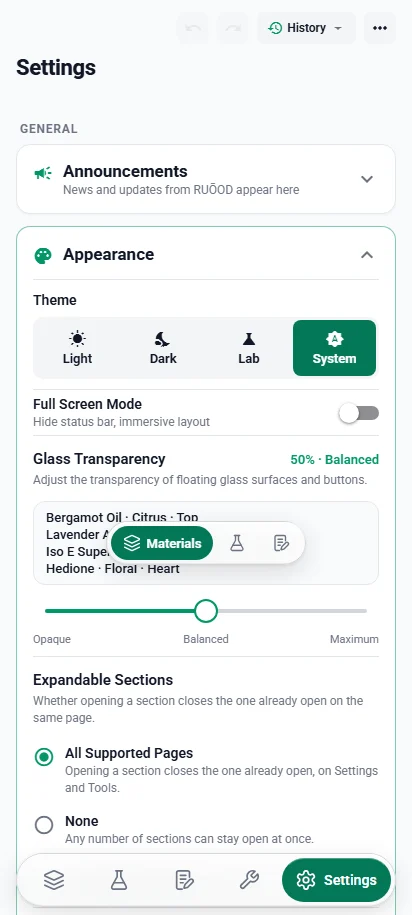
Four appearances: Light, Dark, Lab — a deep emerald dark theme for long sessions — or System, which follows the device. Your choice is kept between sessions. Glass Transparency sets how see-through the floating navigation bar and toolbars are, and Full Screen Mode hides the status bar for an uncluttered bench view. With RUŌOD Lab Premium the app can also open straight into your library, skipping the four-second introduction.
A default weight unit — mg, g, kg, oz or lb — and a default volume unit — ml, L, fl oz or gal. A material's quantity and cost are labelled in the default unit unless that material is set to its own. Formula weights are entered in grams.
Three switches for the Materials list — thumbnails, primary family, fragrance pyramid — and nine for Formulas, described under versions and duplicates. Hiding a detail from a list never removes it from the record.


Phone and tablet
RUŌOD Lab has a phone layout and a tablet layout. On a tablet the five destinations leave the bottom of the screen for a navigation rail down the left edge, and the formula editor, lists and reports widen into the room the larger screen gives them.

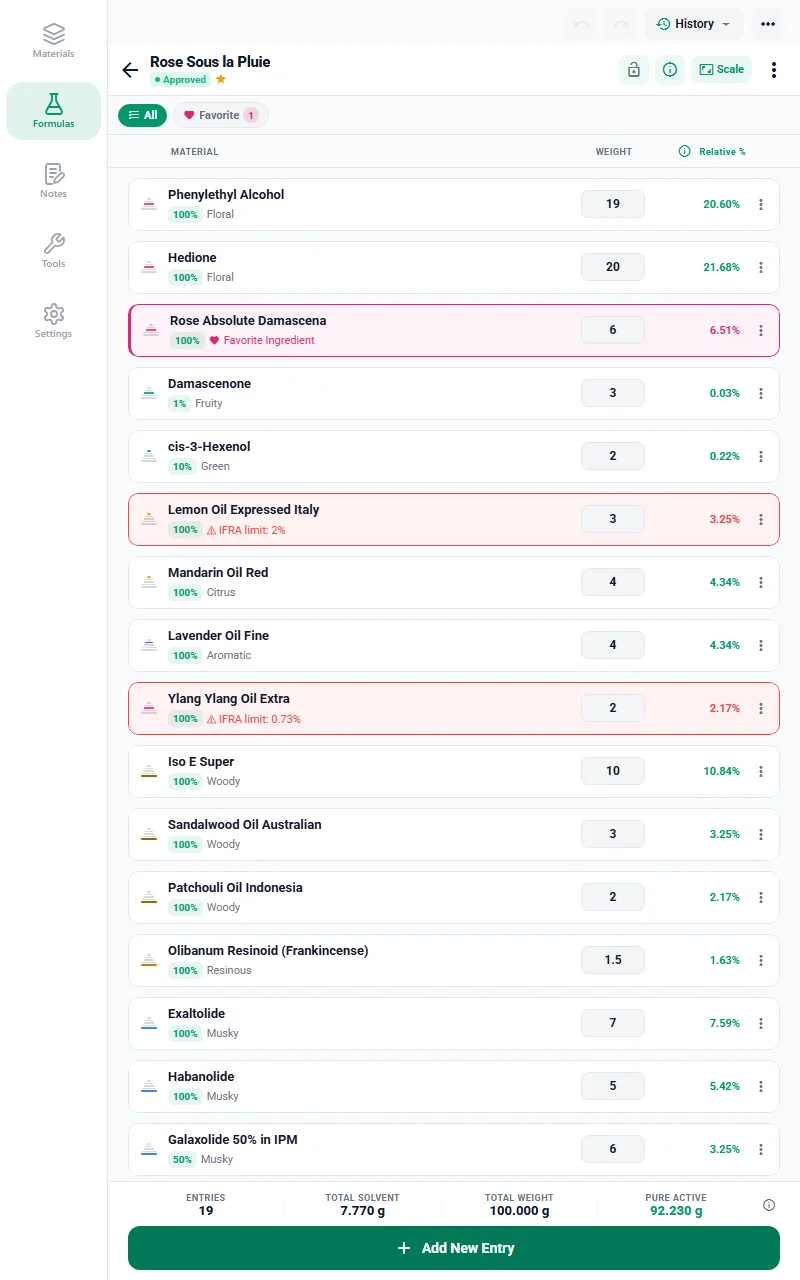
Materials, Formulas, Notes, Tools and Settings sit down the left edge, beside the screen rather than over it, so nothing is covered while you work.
The editor shows more entries on one screen, with the totals still held beneath them — the same engine, with more room to read it in.
Tools & reports
Every statistic the application showed before Reports was about a single material or a single formula. The Reports Center answers eight questions about the whole library — computed when you open it, stored nowhere.
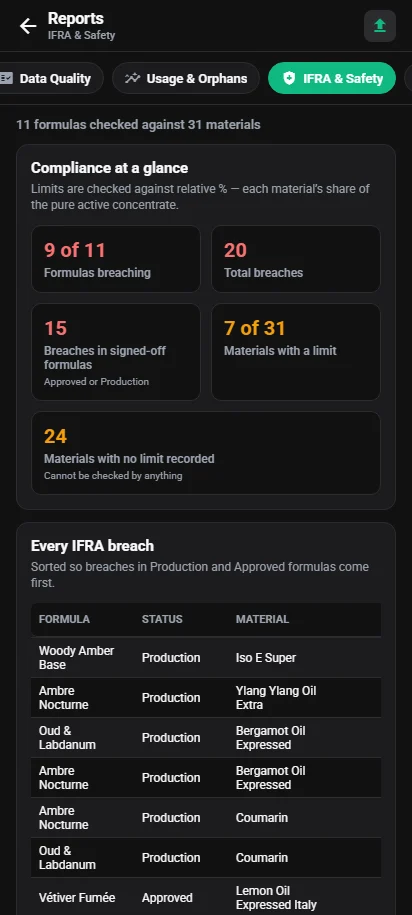
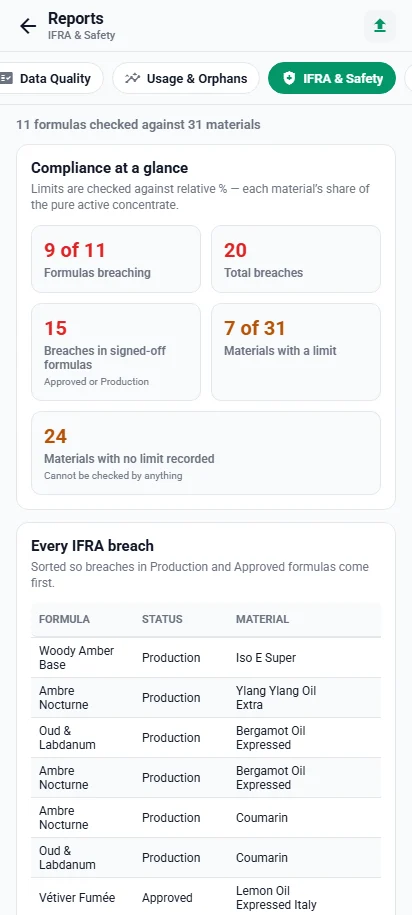
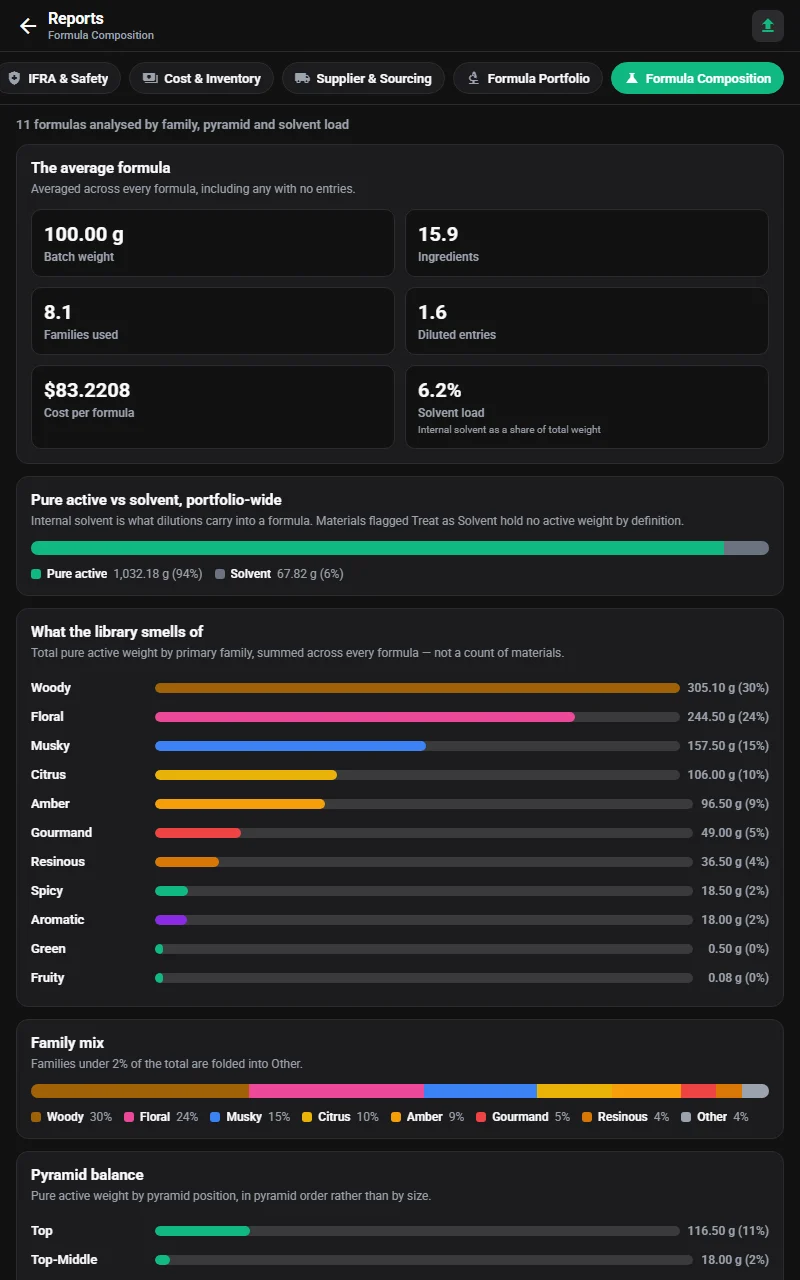
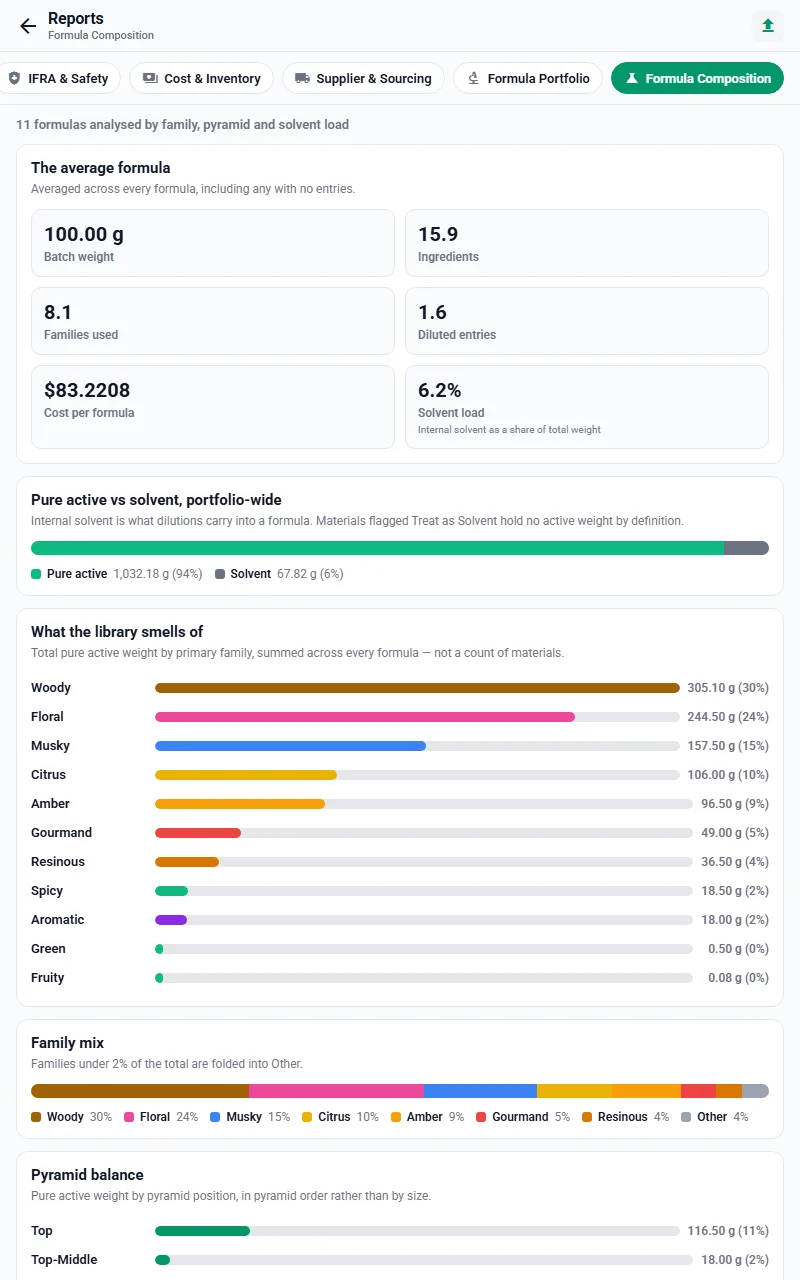
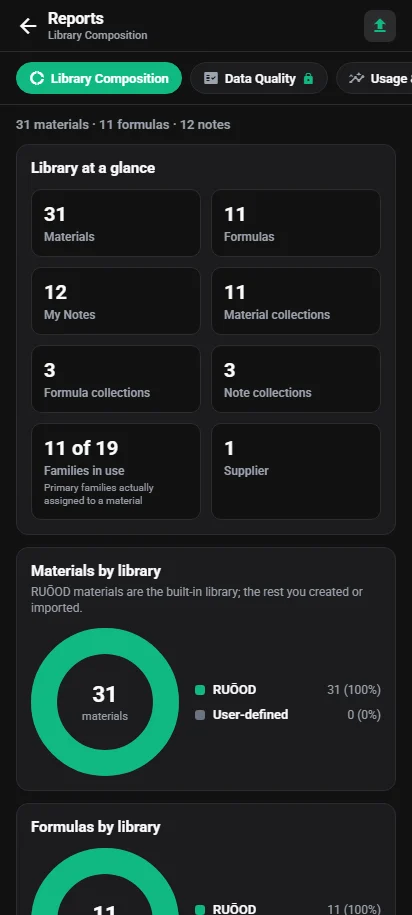
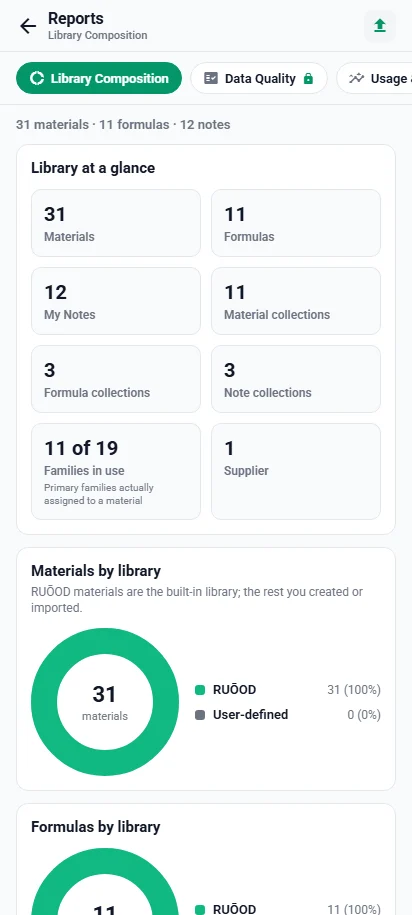
Library composition. What is recorded and what is missing. Which materials are most used, and which are orphans. Every IFRA breach across every formula. Stock value and unit costs. Where materials come from. The status and complexity of the formula portfolio. And what the library smells of, by family and pyramid position. The Free plan opens Library Composition; RUŌOD Lab Premium opens and exports all eight.
A material priced at zero is valued; one with no price recorded is excluded and counted separately. Out of stock and quantity-not-recorded are reported as different rows. A material with no IFRA limit recorded is named as unknown, never counted as compliant. Every figure carries its denominator.
Keep your supplier list and your fragrance families in one place, and use them from the material editor, the filters and the reports alike.
One field at the top of Tools searches materials, formulas, both kinds of collection and both kinds of note — see local and global search.
A built-in library of materials, formulas, notes and nineteen primary families you can generate to start from, and clear when you no longer want it. It stays distinguishable from your own records for as long as you keep it. Generating or clearing the whole library is free; managing one part of it at a time is part of RUŌOD Lab Premium.


Your data
A formulation library represents years of work. RUŌOD Lab is built so you can always get it out again — and export, import and backup are three different things, for three different jobs.
Materials and formulas export as PDF, CSV, Excel or JSON from Export in the ⋯ menu of their own screens. The Free plan exports one record at a time; RUŌOD Lab Premium exports the selection you have made or the whole library. The two collection indexes export as PDF, CSV or JSON from Tools → Export Data, and My Notes and App Notes as PDF, plain text, CSV or JSON. A PDF's design does not change with the number of records in it.
Bring materials, formulas and their collections in from CSV, Excel or JSON. The import screen shows what a file holds before anything is added. If you are moving between devices, a complete backup is the better route — and the importer says so rather than partly reading one. Import Data is part of RUŌOD Lab Premium.
One backup package, two destinations, in Settings → Backup: your device's own storage, or your Google Drive. Both write the same file, and it carries your records whole — including the pictures you took, as bytes rather than as paths that would mean nothing on another install. Backup is part of RUŌOD Lab Premium.
When you start one. A Google Drive backup can also be set to run every day, week or month — the schedule is checked when you open or return to the app, because nothing runs in the background. Manual is the default, and nothing is uploaded on a schedule until you choose one; each backup is a new file, and none is ever replaced.
| Format | Export | Import | Good for |
|---|---|---|---|
| Yes | No | A typeset document to read, print or send | |
| CSV | Yes | Yes | Plain rows any spreadsheet or program can open |
| Excel (.xlsx) | Materials, formulas | Yes | Working on the data in a spreadsheet |
| JSON | Yes | Yes | Structured data that keeps every field, for moving records between tools |
| Plain text | Notes only | No | Reading notes anywhere |


Gallery
A report on a tablet, and a few more of the phone screens you will spend your time in.

Feature overview
This list is what the current build does. Nothing on it is planned, partial or coming later.
Who it is for
Running a library and a formula archive without a laboratory information system behind you.
Learning where dilution, concentration and olfactory contribution actually diverge.
Keeping materials, costs and IFRA positions in one place, with reports over the whole library.
Hundreds of materials and years of trials that have outgrown a spreadsheet.
Free and Premium
The Free plan has every core tool — the materials library, the formula editor and its calculation engine, scaling, collections, notes, search and custom fields — with limits on how much you create. RUŌOD Lab Premium lifts those limits and adds backup, all eight reports and whole-library export. It is one subscription with three billing periods, and each unlocks exactly the same features.
$3 a month
Billed every month.
$8 every 6 months
Billed every six months — about $1.33 a month.
$10 a year
Billed once a year — about $0.83 a month.
Reference prices in US dollars. Google Play sets the price you pay in your country and currency, including any tax, and shows it before you confirm. RUŌOD Lab is in testing and not yet publicly listed on Google Play — write to us to hear when it is. Invited testers can join the test on Google Play.
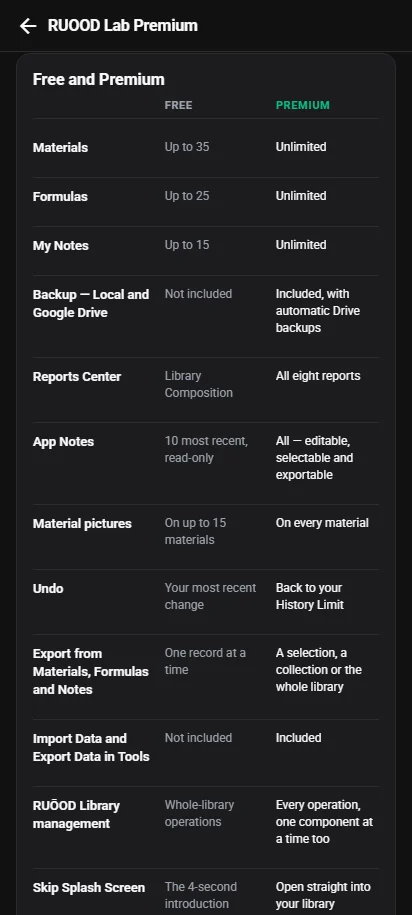
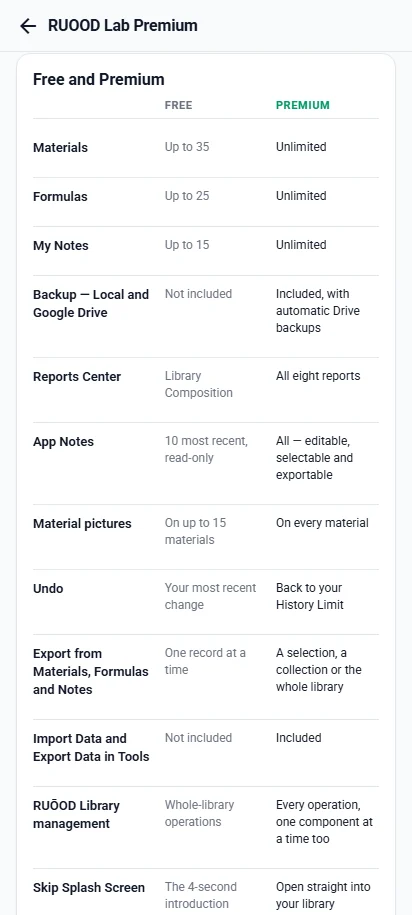
The same comparison the application's own Premium screen shows. Every feature not listed here works the same on both plans.
| Feature | Free | Premium |
|---|---|---|
| Materials | Up to 30 | Unlimited |
| Formulas & Accords | Up to 15 | Unlimited |
| My Notes | Up to 15 | Unlimited |
| Backup — local and Google Drive | Not included | Included, with automatic Drive backups |
| Reports Center | Library Composition | All eight reports |
| App Notes | 10 most recent, read-only | All — editable, selectable and exportable |
| RUŌOD Library pictures | Aroma, on every material | Aroma and Chemical |
| Undo | Your most recent change | Back to your History Limit |
| Export from Materials, Formulas and Notes | One record at a time | A selection, a collection or the whole library |
| Import Data and Export Data in Tools | Not included | Included |
| RUŌOD Library management | Whole-library operations | Every operation, one component at a time too |
| Skip Splash Screen | The four-second introduction | Open straight into your library |
Every record counts towards the Free plan's limits, including those from the RUŌOD Library, and a picture can go on every material on either plan. Collections are not limited.

Questions
A perfume formulation and laboratory-management application for Android. It holds your raw-material library, your formulas and your notes on the device, and calculates dilution, composition, scaling and production targets from one engine.
Yes — it is offline-first. Your materials, formulas, notes and settings are stored on your own device, and every screen works with no connection. A connection is needed only to back up to or restore from Google Drive, to buy or restore a subscription, and to receive in-app announcements.
No. There is no RUŌOD account and no sign-up. The only sign-in anywhere in the application is Google's own, and only if you decide to connect Google Drive for backup.
Yes. On an Android tablet the five destinations move from the bottom of the screen to a navigation rail down the left edge, and the formula editor, lists and reports use the extra width. On phones and tablets alike the app is used upright, in portrait. See phone and tablet layouts.
Not at present. RUŌOD Lab is an Android application, and this website is its product site rather than a version of the app you can use in a browser.
Write to info@ruood.com for general questions, or developers@ruood.com for technical ones. Both addresses are also in the app, under Settings → About, and on the contact page.
Yes. The Free plan has no time limit and includes every core tool: the materials library, the formula editor and its calculation engine, dilution, scaling and production targets, collections, My Notes, search, reorder mode, custom fields and Formula Hub. It limits how much you can create and keeps a few larger features for RUŌOD Lab Premium, an optional subscription. See Free and Premium.
Up to 30 materials, 15 formulas and accords together, and 15 My Notes; a picture on every material, with Aroma pictures from the RUŌOD Library; your 10 most recent App Notes, read-only; the Library Composition report; undo of your most recent change; exporting one material, formula or note at a time; and the RUŌOD Library's whole-library operations. Every other feature works on the Free plan. Every record counts towards the limits, including those from the RUŌOD Library.
Unlimited materials, formulas and My Notes; Local Backup and Google Drive backup, including automatic Drive backups; all eight reports; every App Note, editable, selectable and exportable; Chemical pictures from the RUŌOD Library as well as Aroma; undo back to your History Limit; exporting a selection, a collection or the whole library; Import Data and Export Data in Tools; managing the RUŌOD Library one component at a time; and opening straight into your library without the introduction. All three billing periods unlock the same features.
Three billing periods for the same RUŌOD Lab Premium: Monthly, at a reference price of US$3 a month; 6 Months, at US$8 every six months; and Yearly, at US$10 a year. These are reference prices in US dollars — Google Play sets the price in your country and currency, including any tax, and shows it before you confirm.
In the app, open Settings → RUŌOD Lab Premium, choose a plan and continue. Google Play's own purchase sheet completes the payment with your Google Play account, and RUŌOD Lab never sees your card or payment details. RUŌOD Lab is not yet listed on Google Play, so subscriptions become available when it is.
In Google Play: open the Play Store, then Payments & subscriptions → Subscriptions — or tap Manage in Google Play on the app's Premium screen. That is where you cancel, switch between Monthly, 6 Months and Yearly, or update your payment method. Cancelling stops the next renewal, and Premium stays until the end of the period you have paid for. Uninstalling the app does not cancel a subscription.
Nothing is deleted. If you have more than 30 materials, 15 formulas and accords or 15 notes, you keep, view, edit, search and delete all of them — only adding another waits for Premium. Backup files you made stay where they are, and renewing brings Backup straight back.
On your own device, in the application's private storage. There is no RUŌOD account and no RUŌOD server holding your library. With RUŌOD Lab Premium you can also write a complete backup to the device's own storage or to your Google Drive. The Privacy Policy sets out exactly what is stored where.
No. RUŌOD operates no server that receives your data, and the app contains no analytics, crash reporting, advertising or tracking, so your library never reaches us. A Google Drive backup goes into your own Drive, and the app's Drive permission reaches only the files it created there — not the rest of your Drive, and not RUŌOD.
In Settings → Backup → Google Drive Backup, tap Connect Google Drive and choose your account. Backup Now writes one complete file — every record, picture and setting — into a RUOOD Lab / Backups folder in your Drive, and never replaces an earlier one. You can also choose a schedule — every day, week or month — which is checked when you open the app, because nothing runs in the background. Restore From Drive replaces the data on the device with the backup you pick, after showing what it will replace. Google Drive backup is part of RUŌOD Lab Premium.
Yes. Nothing connects to Google until you tap Connect Google Drive, and automatic backups start only once you choose a schedule — the default is Manual. Local Backup, to the device's own storage, needs no Google account at all. Disconnect at any time; your backup files stay in your Drive until you delete them.
Delete individual records in the app. Tools → Danger Zone → Factory Reset removes every material, formula, note, collection, supplier, family and calculation, deletes stored pictures, clears the undo history and returns settings to their defaults. It does not sign you out of Google Drive and does not delete backup files: remove those in Settings → Backup with Premium, or delete Drive backups in Google Drive itself on any plan. Uninstalling the app removes everything it stored on the device, local backups included. The Privacy Policy has the details.
Materials and formulas export as PDF, CSV, Excel (.xlsx) or JSON, and the two collection indexes as PDF, CSV or JSON. My Notes and App Notes export as PDF, plain text, CSV or JSON. Imports read CSV, Excel and JSON. PDF is for reading and printing, so it is an export format only. A complete backup is a separate package, written from Settings → Backup.
One material, formula or note at a time, in any of its formats — export it from its own screen, or select just that one. Exporting a selection, a collection or the whole library, exporting App Notes, and Tools → Import Data and Export Data are part of RUŌOD Lab Premium.
Yes. All three are filed into collections you name, colour, fold and reorder, and items move between collections in one step. Turn on Reorder from the ⋯ menu of Materials, Formulas or Notes: every row shows up and down arrows and its position number. Tap the number, type the position you want and confirm with OK, and the item moves straight there instead of being dragged through a long list. Fold every collection and the collections themselves reorder the same way. Reorder is offered only while a list is in its own order — not during a search, filter, sort or selection.
Each row carries a raw weight and a dilution percentage. From those the engine derives the pure active weight and the internal solvent the row brought with it, and totals both across the formula. Changing a row's dilution is done through one of three methods, which differ in what they hold constant — the row's weight, the row's pure active, or both the pure active and the formula total.
Formula % is a row's weight over the total formula weight, which is its physical share. Absolute % is a row's pure active over the total formula weight, which is its concentration in the finished mass. Relative % is a row's pure active over the total pure active, which is its olfactory contribution — and it is what IFRA limits are checked against.
Yes. Scale to a target total weight, by a factor, from a single material's weight or percentage, or to a target absolute percentage. For a finished batch, give the amount and the concentration and the engine returns the concentrate needed, the alcohol to make it up with, and the scaling factor from the formula as it stands.
Where you have recorded a limit for a material, the engine compares it against that entry's relative percentage and flags the row, on both plans. The IFRA & Safety report, one of the eight reports in RUŌOD Lab Premium, gathers every breach across every formula. It checks what you have recorded — RUŌOD Lab does not ship IFRA standards and is not a substitute for the current published standards or for your own regulatory assessment.
Duplicating a formula creates a copy named with the next version number — v2, then v3 — and every formula in the list shows a small badge such as V1 · D0. V is the version, and versions are never renumbered: delete V2 of four and V4 stays V4. D is the duplicate count — how many other formulas share the same base name — so a formula with no copies reads D0. It is counted from the list, so it falls when a copy is deleted.
Yes. Undo and redo work across the application, and the History menu lists recent actions. On the Free plan you can undo your most recent change; RUŌOD Lab Premium goes back as far as the History Limit, which Tools → Undo & History sets to 25, 50 (the default), 100, 150 or 200 operations, and can return your records to an earlier point. Not every action is recorded — changing a setting or duplicating a formula is not — and the delete dialog warns that a very large deletion may not be undoable.
My Notes are notes you write yourself: formatted text filed into collections, given a category — General, Idea, Research, Experiment or Reminder — pinned and ordered by hand. App Notes is one list of every description already written on a material, a formula or a collection. It is a view over those records rather than a copy, so editing a note there changes the description on the record itself. The Free plan shows your 10 most recent App Notes, read-only; RUŌOD Lab Premium shows and edits them all.
Yes. A custom field can belong to every material, added in Tools → Material Fields, or to a single material, added from that material's Custom Fields section. Material Layout arranges the sections a material is shown in: add your own, rename them, reorder them, hide them and move fields between them. Calculated fields are written in Formula Hub as arithmetic over a material's fields, and recalculate when their sources change.
No. RUŌOD Lab is a single-user application with no shared workspace, no comments and no real-time editing. Sharing is done by exporting a PDF or a spreadsheet.
A formulation bench that keeps the numbers straight, on a device you already carry into the lab.
Not yet published on Google Play. Write to info@ruood.com to be told when it is.